AI Flowchart Generator from Screen Recording
SpecSnap AI

Why Manual Flowcharting Kills Productivity
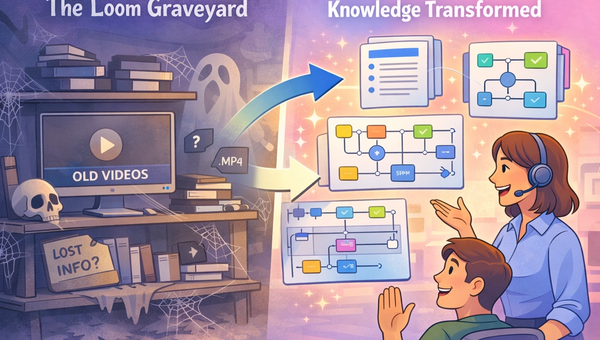
You already know this process: record a Loom, spend two hours in Lucidchart trying to translate it into a flowchart your team can actually use, then watch it go stale the moment the software updates.
The traditional approach has three structural problems:
Time: Drawing every box, arrow, and decision gate manually can take 1–2 hours for a process that takes 10 minutes to perform. You're spending more time documenting work than doing it.
Staleness: The moment an interface updates or a step changes, your manually-drawn diagram is wrong. Fixing it means starting over.
Inconsistency: When different people document the same type of process in different tools with different styles, your documentation library becomes unreadable noise rather than a usable reference.
The tools most people reach for — Lucidchart, Visio, Miro, or Creately — are all text-to-diagram or blank-canvas tools. You still have to describe or draw the process yourself. None of them watch you do the work and produce the diagram automatically.
SpecSnap does.
What "Screen Recording to Flowchart" Actually Means
When most people hear "AI flowchart generator," they think: type a description, get a diagram. That's useful, but it still requires you to translate a process into words before anything gets generated.
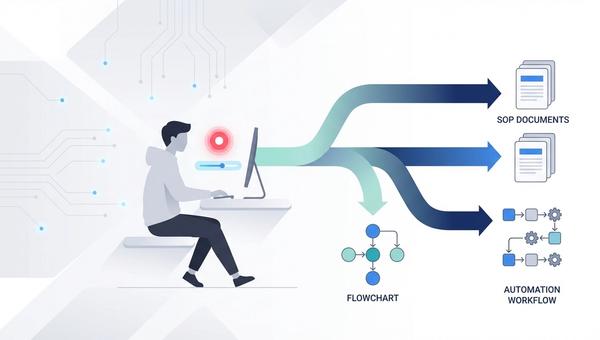
SpecSnap takes a different approach: you perform the process, and the diagram builds itself from your actions. Every click, navigation step, and decision point is captured and converted into a structured process map — including the connectors, logic gates, and swimlane assignments — without you writing a single sentence.
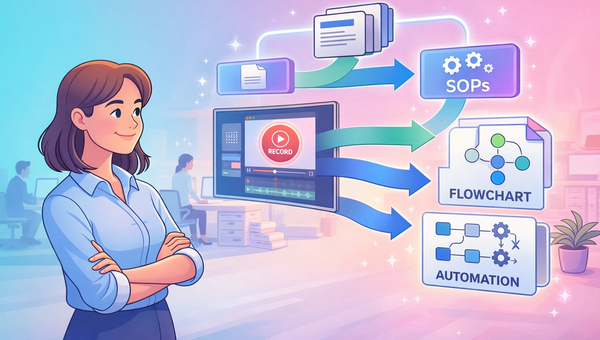
The output isn't just a flowchart. From a single recording, SpecSnap generates:
- A timestamped video guide with clickable step navigation
- A step-by-step SOP with auto-captured screenshots
- A swimlane flowchart showing who does what across roles or systems
- A BPMN diagram for teams that need process notation standards
- Optimization suggestions flagging redundant steps, shortcuts, and unobserved paths
This is the distinction between a diagram tool and a process intelligence tool.
Step-by-Step: Recording to Flowchart with SpecSnap
Step 1: Start the SpecSnap Extension Open SpecSnap in your browser or desktop app and click Record. You'll see a small indicator confirming the AI is running in the background.
Step 2: Perform the Task Naturally Go through the process as you normally would. SpecSnap's AI tags every click, hover, form entry, and navigation event in real time. You don't need to narrate or pause — just work.
Step 3: Let the AI Identify Decision Points If your process includes a branching condition — "if the user is logged in, go to X; if not, go to Y" — simply perform both paths during the recording. SpecSnap identifies these logic gates automatically and maps them as decision diamonds in the resulting flowchart.
Step 4: Review the Auto-Generated Diagram When you stop recording, SpecSnap synthesizes the captured data. Within roughly 60 seconds, you'll have a structured visual flowchart with labeled steps, connectors, and decision branches — not just a screenshot gallery.
Step 5: Label, Export, and Share Spend 30 seconds labeling your decision gates to clarify the "why" behind each branch. Then export as PNG or PDF, or embed directly into Notion, Confluence, or Slack. The diagram is immediately shareable and ready for your wiki.
SpecSnap vs. Manual Diagramming Tools
| Feature | Manual Tools (Lucid, Visio, Miro) | SpecSnap AI |
|---|---|---|
| Creation Time | 1–2 hours | Under 2 minutes |
| Source of Truth | Your description or memory | Your actual recorded actions |
| Decision Logic | Manual — you draw every branch | Automatically detected from workflow |
| Diagram Types | Flowchart, BPMN (manual setup) | Swimlane + BPMN auto-generated |
| Update Process | Full redraw required | Re-record the updated process |
| Additional Outputs | Diagram only | SOP + video guide + optimization insights |
| Integration | Export/embed manually | Direct push to Notion, Confluence, Slack |
The BPMN Advantage Most Teams Miss
Standard flowcharts work for simple processes. But if your team works in a context where processes cross roles, departments, or systems — onboarding, compliance, multi-tool workflows — you need swimlane diagrams and BPMN notation to be precise about who does what and when.
Most AI flowchart generators produce a linear chart from text input. SpecSnap produces swimlane and BPMN diagrams from your actual recorded workflow — capturing system boundaries, handoff points, and role assignments automatically, because it watched the process happen.
For teams preparing for audits, building onboarding runbooks, or standardizing cross-functional workflows, this is the difference between a diagram that looks right and one that is right.
Best Practices for High-Accuracy AI Diagrams
Record the "Happy Path" First Document the most common, successful version of the process before recording edge cases or exceptions. This gives the AI a clean baseline to structure the diagram around. Exception paths can be added as branching recordings afterward.
Act With Deliberate Pauses You don't need to narrate, but deliberate pacing helps. A brief pause after each significant action — clicking a button, submitting a form, navigating to a new screen — helps the AI distinguish meaningful steps from background noise. Think of it as punctuation for your workflow.
Label Decision Gates After Generation After SpecSnap generates the initial diagram, invest 30 seconds labeling each decision diamond. "User authenticated?" reads better than a blank branch node and ensures your team understands the logic, not just the path. The AI captures the structure; your labels provide the meaning.
Stop Drawing, Start Recording
Every hour your team spends dragging shapes around a canvas is an hour not spent on the work those shapes are supposed to document. AI-powered process capture flips the equation: the documentation comes from doing the work, not from describing it afterward.
If you want to see a swimlane flowchart of your next 60-second process without touching Lucidchart, try SpecSnap free. No credit card required.
Frequently Asked Questions
Does SpecSnap generate BPMN diagrams, not just basic flowcharts? Yes. SpecSnap produces both swimlane flowcharts and BPMN-compliant diagrams from a single recording, suitable for process audits and cross-functional documentation.
How is this different from Scribe? Scribe generates step-by-step guides with screenshots from screen recordings, a strong tool for creating written how-to guides. SpecSnap generates visual process diagrams (flowcharts, BPMN) in addition to SOPs, and adds optimization analysis and an Automation-as-a-Service layer. See our full SpecSnap vs. Scribe comparison.
Can I edit the diagram after it's generated? Yes. SpecSnap's diagrams are fully editable. You can relabel steps, adjust connectors, add annotations, and reorganize the structure before exporting.
What formats can I export to? PNG, PDF, or direct embed into Notion, Confluence, and Slack.